B2B sales starts with a list. However good your product is, nothing happens until you know who to contact.
Building that list by hand is slower than most people expect: search, load each website, find the contact details, paste them into a spreadsheet, repeat. At 1 to 2 minutes per business, 300 businesses take days of spare time.
This post explains how to collect B2B contact data automatically from public web sources — the steps a good process needs, what to filter out, and what to check before a single email goes out. It's based on what we (Outreach) measured while building our own collection pipeline.
Where does B2B contact data actually come from?
Most of it is already public. Businesses put their email and phone number on their website, in directories, and on their About pages for one reason: they want to be contacted — by customers, suppliers, and partners.
So automated B2B lead collection isn't about digging up hidden information. It's about finding public contact details that match your criteria, reliably and at scale.
The hard part is that this data is scattered. Every business has a different website, lists its details in a different place, and formats them differently. One puts the email in the footer; another hides it on a Contact page; a German business may list it on its Impressum page.
What steps does automated contact collection need?
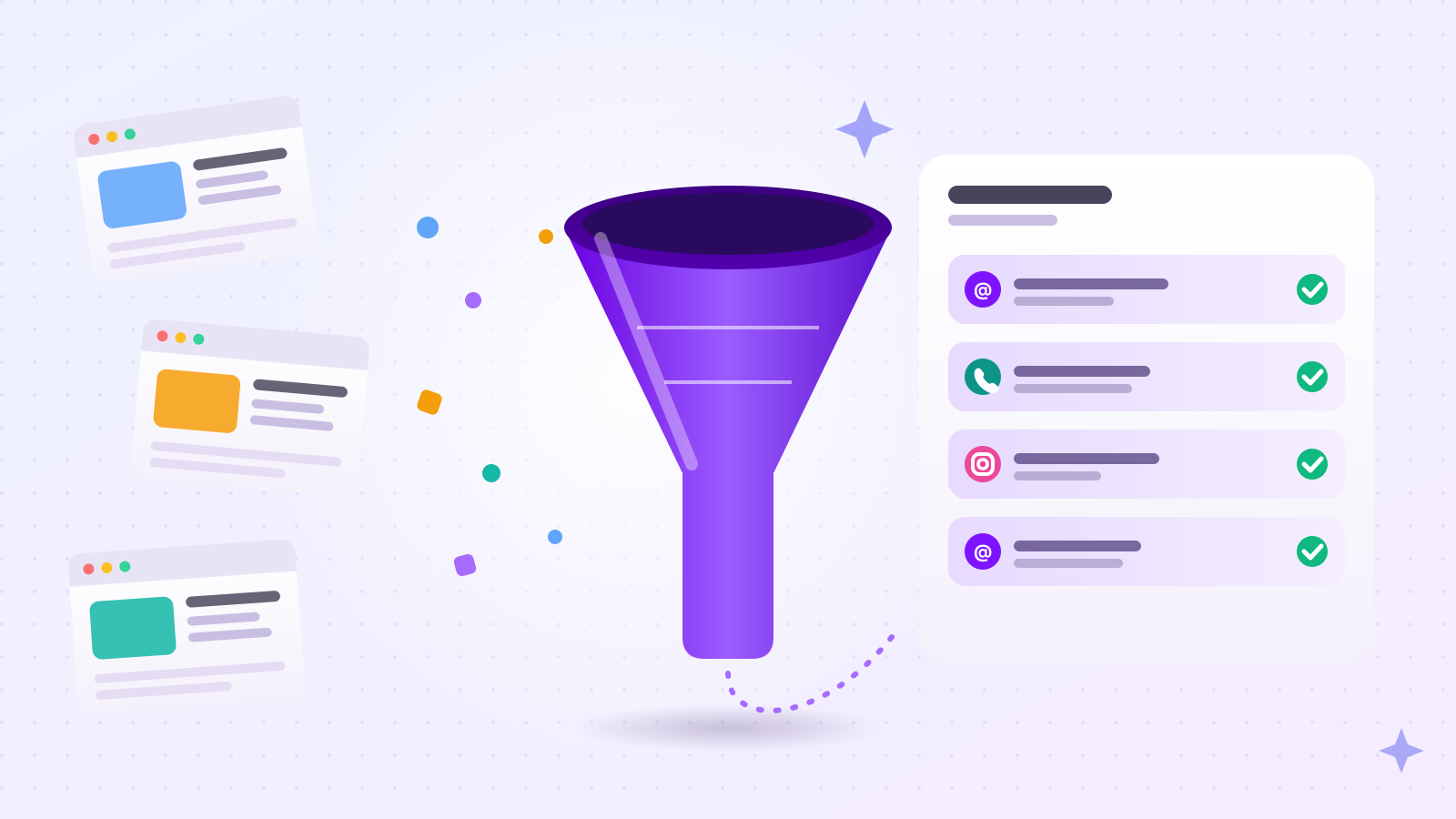
Four: find, visit, filter, and verify. Skip any one and the list becomes hard to use.
Step 1 — Find. Search by keyword to get candidate websites. One search phrase is rarely enough: the same industry goes by several names, and each name surfaces different businesses. To reach your target count, expand to the different terms people use for the same kind of business.
Step 2 — Visit. Don't save search results as-is. Load each website and look for contact details — and don't stop at the home page. In our tests on German businesses, checking only the home page found an email for 10 of 24 businesses. Checking Contact and About pages too raised that to 16 of 24 (67%), and average time per website fell from 22 seconds to 14.9 seconds.
Step 3 — Filter. Search results include things that aren't businesses. Left in, they waste emails and make your outreach look careless.
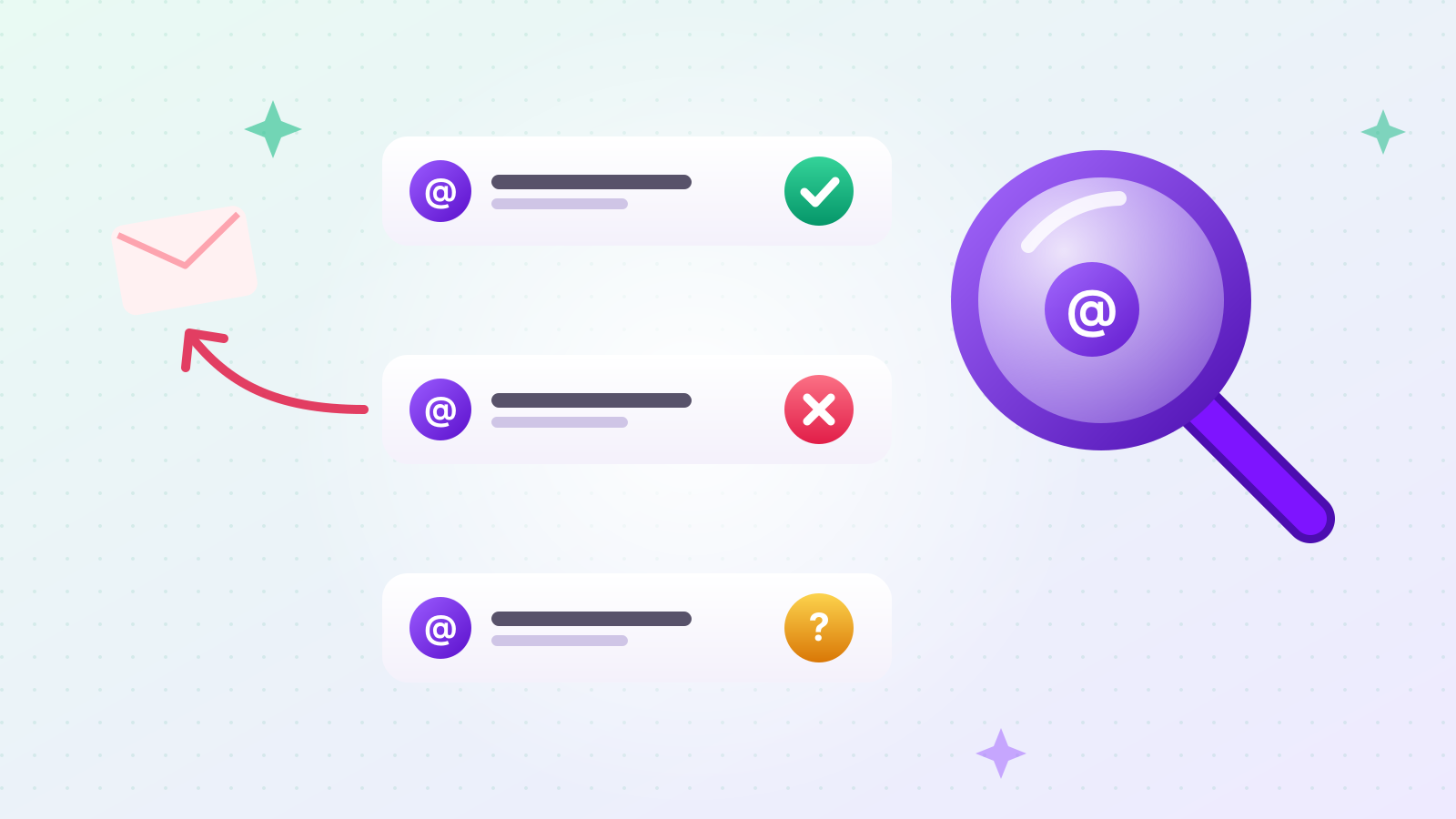
Step 4 — Verify. Check that the emails you collected are real, deliverable addresses. Skipping this step is expensive later — see below.
What should be filtered out of a scraped lead list?
Anything that isn't a single, real business. In one batch of search results we reviewed, only 17 of 30 were actual businesses. The rest were news articles, listing sites, government offices, and associations.
| Filter out | How to spot it |
|---|---|
| News articles | URL contains /news/ or article-style paths; the title reads like a headline |
| Listing sites | "Best [industry] in [city]" style titles; many businesses' contacts on one page |
| Government offices and associations | "City of…", "Department of…", "Association", "Chamber" in the name |
| Product pages | URL contains /product/ or /goods/ — the product name gets saved as a business name |
| SEO landing pages | Titles like "Top-rated [service] in [region]" instead of a real business name |
One important warning: filtering rules that work in one industry fail in another. In our own tests, after several rounds of tuning on dental offices and real estate, the defect rate was 3.3%. Switching to chiropractors and insurance agents raised it to 27%, partly because business names built from domains (like parkridgechiropractic.com) need industry words to be split correctly.
So when you evaluate any lead collection tool, run it once on an industry that isn't yours. It's the cheapest test that reveals how general its rules really are.
What happens if you email addresses that don't exist?
Your emails to valid addresses start landing in spam too. This is the most important list-quality issue, and it's easy to underestimate.
An email to a nonexistent address bounces. When bounces pile up, mailbox providers read it as a sender who doesn't check their list. From then on, even messages to real, active addresses are more likely to end up in the recipient's spam folder.
That's why you verify before sending. The method: ask the recipient's mail server whether it will accept mail for that address, without actually sending a message. The recipient receives nothing.
There are limits. Some servers accept mail for every address (a "catch-all" setup), and some refuse to answer the question. In those cases, the honest answer is "can't be confirmed" rather than "valid." You can try it without signing up using our free email address checker; the full explanation is in how to check whether an email address exists.
How do you make sure results match the region you asked for?
Check the street address first. Use the phone number only when there's no address. If there's neither, don't save the business.
If you're targeting interior contractors in one state and businesses from the next state slip in, every one of those emails is waste. The order of evidence matters.
If there's an address, the address decides. Nothing is more reliable than the address a business publishes itself.
If there's no address, look at region-specific phone numbers — area codes assigned to that region. But be careful: toll-free numbers and numbers carried over from an old location are common. In a Georgia collection of 50 businesses, 4 used out-of-state numbers (877, 561, 916, 855). We checked each website by hand, and all four had Georgia addresses. Filtering by phone number first would have discarded four valid businesses.
If neither is available, don't save it. You collect fewer businesses, but a list without wrong-region entries is worth more.
How fast can you collect before Google starts blocking you?
About 9 searches per 10 minutes stayed safe in our measurements. Faster than that, Google eventually shows a CAPTCHA ("are you a human?") and that connection can't search for hours.
What we measured:
| Search pace | Result |
|---|---|
| About 9 per 10 minutes, for about 3 hours | No CAPTCHA |
| About 12 per 10 minutes | CAPTCHA after 89 minutes |
| About 31 per 10 minutes | CAPTCHA after 13 minutes |
The takeaway: it's pace that trips the block, not the total count. In real runs at a safe pace, collecting 30 businesses in one Georgia region took between 13 minutes 27 seconds and 30 minutes 24 seconds, with 8 to 21 searches and no CAPTCHA.
Good B2B data collection isn't about going as fast as possible. It's about never getting blocked.
How is automated collection different from buying a lead list?
You get current data that matches your exact criteria. Bought lists have two built-in problems.
You don't know when they were collected. Business contact data decays as shops close and staff change. Old addresses become dead addresses, and dead addresses cause the bounce problem above.
They rarely match your criteria. Bought lists come in broad chunks like "1,000 manufacturers." Ask for "interior contractors in one state that publish an email address" and no such list exists off the shelf.
Collecting directly solves both: the data is as fresh as the moment it's collected, and you set the conditions — including making a contact field required, so businesses without an email aren't saved at all.
What should you check before sending to the list you collected?
Your sending domain's authentication, and the state of each address. A good list still lands in spam if your sending setup isn't ready.
Sending domain authentication. Receiving servers check whether a message really comes from your domain using SPF, DKIM, and DMARC. Google's sender guidelines require SPF or DKIM from all senders, and DMARC from bulk senders. Check your domain with our free sender domain checker, and see setting up SPF, DKIM, and DMARC for the steps.
Address status. Check every address on the list before the first send, not after the bounces arrive. Our free email address checker asks the recipient's mail server whether an address exists without sending anything, and tells you whether the address exists, doesn't exist, or can't be verified.
The deliverability side — including the one spam threshold Google publishes — is covered in why cold emails land in spam.
How does Outreach automate this?
Outreach runs all four steps in one place. You decide where to look, what to look for, how many businesses you want, and which contact details you need; the rest happens for you.
Enter keywords and a region, and it finds matching businesses, visits their websites to collect emails, phone numbers, and Instagram handles, and filters out listings that aren't businesses. Email addresses are checked before they're saved. You choose for each contact field whether to skip it, collect it if available, or require it.
You're charged per contact detail found and nothing for details that weren't found. Before collection starts, you see the maximum possible cost based on the fields you chose.
International regions work too: pick a country and a state or province, and only businesses whose location is confirmed are saved. For a real example, see how we built a list of 305 Korean-owned businesses in the US. You can send emails and Instagram DMs from the same list. Emails go out from your own connected Gmail, one at a time with a pause of about 10 minutes between them, and the send queue shows each address as valid, unconfirmed, or undeliverable before anything goes out. If a message isn't delivered, its credits come back to you. For businesses that don't reply, automatic follow-up emails can go out at an interval you set.
New accounts get free credits on signup.