If you send cold email from your own domain, three DNS records decide whether receiving servers believe the mail is really yours: SPF, DKIM and DMARC. Without them, even a well-written first email can be filtered before anyone reads it.
This guide is for founders and sales teams who send outreach from an address like you@yourcompany.com, usually through Google Workspace. We (Outreach) walk through each record in the order you should set it up, show the record formats exactly as Google's help pages and the RFCs publish them, and point out the mistakes that make a record look fine while it silently fails.
You don't need to be a DNS expert. You need access to your domain's DNS settings (at your registrar or DNS host) and, for DKIM, admin access to Google Workspace.
What are SPF, DKIM and DMARC, in one sentence each?
SPF lists the servers allowed to send mail for your domain, DKIM adds a cryptographic signature that proves a message wasn't forged or altered, and DMARC tells receivers what to do when a message fails those checks. All three are published as TXT records in your domain's DNS.
| Record | Where it lives | What it answers |
|---|---|---|
| SPF | yourcompany.com (host @) |
"Is this server allowed to send for this domain?" |
| DKIM | google._domainkey.yourcompany.com |
"Was this message signed by the domain, and unchanged?" |
| DMARC | _dmarc.yourcompany.com |
"If a check fails, what does the domain owner want done?" |
They work together. SPF and DKIM each prove something narrow; DMARC ties those proofs to the address people actually see in the From line.
Are these records actually required for cold email?
Yes — at least SPF or DKIM is required for every sender to Gmail and Yahoo, and bulk senders need all three. This isn't a best-practice suggestion; it's in both providers' published sender rules.
Google's email sender guidelines say all senders must "Set up SPF or DKIM email authentication for your sending domains." Senders of "more than 5,000 messages per day to Gmail accounts" must also "Set up SPF and DKIM" plus "DMARC email authentication for your sending domain," and the From domain must be aligned with the SPF or DKIM domain. These rules took effect on February 1, 2024.
Yahoo's Sender Hub best practices match: every sender must "Implement SPF or DKIM at a minimum," and bulk senders must "Implement both SPF & DKIM" and "Publish a valid DMARC policy with at least p=none."
A small cold email program may never reach 5,000 messages a day. Set up all three anyway: it costs nothing, it takes an afternoon, and it means you never have to find out where the line is.
How do you set up SPF?
Add one TXT record at your root domain that starts with v=spf1, lists every service that sends mail for you, and ends with ~all. For a domain that sends only through Google Workspace, Google's SPF setup page gives this exact record:
v=spf1 include:_spf.google.com ~all
Steps:
- Sign in to your domain host's DNS settings.
- Create a TXT record. For the host or name field, Google says to enter
@if you're adding it to the root domain rather than a subdomain. - Paste the record as the value and save.
- Wait. Google notes "It can take up to 48 hours for SPF authentication to start working."
If other services also send mail from your domain — a newsletter tool, a CRM, a transactional mail service — each needs its own include: in the same record. Google's page gives these combined examples:
v=spf1 include:_spf.google.com include:amazonses.com ~all
v=spf1 include:_spf.google.com include:spf.protection.outlook.com ~all
v=spf1 include:_spf.google.com include:_spf.salesforce.com ~all
Use the include value that each sending service documents for itself; don't guess it.
Should the SPF record end in ~all or -all?
Google's setup guide uses ~all, and that is the safe default while you're still discovering every service that sends for you. The two endings mean different things in RFC 7208, the SPF standard:
~all(softfail) is "A weak statement by the publishing ADMD that the host is probably not authorized."-all(fail) is "An explicit statement that the client is not authorized to use the domain in the given identity."
With -all, a sending service you forgot to include gets a hard failure. Once DMARC is in place and its reports show every legitimate source passing, the SPF ending matters less, because DMARC's policy becomes the instruction receivers follow.
Why does SPF break with too many includes?
Because an SPF check may trigger at most 10 DNS lookups; past that, the whole result becomes an error. RFC 7208, section 4.6.4 says implementations "MUST limit the total number of those terms to 10 during SPF evaluation" and "If this limit is exceeded, the implementation MUST return 'permerror'."
The terms that count are include, a, mx, ptr, exists and the redirect modifier. Crucially, the count covers the whole evaluation — so an include: that itself contains more includes uses up several of your 10. Google's own page phrases this as "An SPF record can have up to 10 include: tags"; the RFC is the stricter reading because nested lookups count too.
If you've added several sales and marketing tools over the years, remove the ones you no longer use before adding new includes.
What happens if a domain has two SPF records?
SPF fails with an error — two records are treated as a broken configuration, not as two lists to combine. RFC 7208 says that when more than one v=spf1 record exists for a domain, the check "produces the 'permerror' result."
A common way this happens: someone adds a second TXT record for a new tool instead of editing the existing one. The fix is to merge them into one record with multiple include: terms, as in the examples above.
How do you turn on DKIM in Google Workspace?
Generate a key in the Admin console, publish it as a TXT record at google._domainkey, then click "Start authentication." Google's DKIM setup page lays out the path:
- In the Google Admin console, go to Apps > Google Workspace > Gmail > Authenticate email. (You need Gmail Settings administrator privilege.)
- Choose the domain and generate a new record.
- Pick the key length. Google says choose 2048 "If your domain provider supports 2048-bit keys" because "Longer keys are more secure than shorter keys," and 1024 only "If your domain host doesn't support 2048-bit keys."
- Keep the default prefix selector,
google— Google calls it "the recommended option" for Workspace. - Google shows you a DNS host name,
google._domainkey, and a TXT value that begins withv=DKIM1. Copy both into a new TXT record at your DNS host. - Back in the Admin console, click Start authentication.
The TXT value Google generates has this shape (the key itself is a long string unique to your domain):
v=DKIM1; k=rsa; p=MIIBIjANBgkqh...(your public key continues)
Timing: Google says "it can take up to 48 hours for DKIM authentication to start working" after you add the key. If you've only just set up Gmail for a new domain, Google notes you "must wait 24–72 hours" before the DKIM key is even available in the Admin console.
If another service sends mail for you, it will give you its own DKIM record with its own selector. Publish that too — multiple DKIM keys with different selectors can coexist, unlike SPF.
How do you set up DMARC without blocking your own mail?
Publish a TXT record at _dmarc.yourcompany.com with p=none first, read the reports, and only then tighten the policy. Google's DMARC setup page says: "When you start using DMARC, we recommend setting the policy option (p) to none." It also advises you to "Allow 48 hours after setting up SPF and/or DKIM before setting up DMARC."
Google's page gives this full example record:
v=DMARC1; p=reject; rua=mailto:postmaster@example.com, mailto:dmarc@example.com; pct=100; adkim=s; aspf=s
That example shows the finished, strictest state. For a first record, the same format with a monitoring policy and one report address is enough — for example v=DMARC1; p=none; rua=mailto:dmarc@yourcompany.com. The rua tag sends aggregate reports to that mailbox; Google recommends a dedicated mailbox or group, because reports can arrive in volume.
The three policy values, as defined in the DMARC specification:
| Policy | What you're asking receivers to do |
|---|---|
p=none |
No specific action — just report |
p=quarantine |
Treat failures as suspicious (for example, the spam folder) |
p=reject |
Reject mail that fails the DMARC check |
One domain gets one DMARC record. Under RFC 9989, if multiple DMARC records are returned, "they are all discarded" — meaning no policy applies at all.
What does "alignment" mean, and why does DMARC fail when SPF passes?
DMARC passes only when SPF or DKIM passes for a domain that matches the From address people see. SPF can pass for your sending service's own domain while the From line shows yours — and then DMARC still fails, because the passing domain isn't aligned.
The DMARC specification states that a message passes when at least one authentication method produces a pass "based on an identifier that is in alignment" (RFC 7489, now continued in RFC 9989). By default, alignment is relaxed (adkim and aspf default to r): mail.yourcompany.com and yourcompany.com count as a match because they share the same organizational domain. Strict mode (s), as in Google's example, requires an exact match.
In practice, this is why DKIM matters so much for cold email: when your sending service signs with your domain, DKIM alignment passes even if SPF alignment doesn't.
Did the DMARC standard change in 2026?
Yes. RFC 9989, published in May 2026 as a Standards Track document, obsoletes the original RFC 7489 — and it removes the pct tag. Existing v=DMARC1 records keep working.
The main change most senders will notice: pct (apply the policy to only a percentage of failing mail) is gone. The RFC explains that "Operational experience showed that the 'pct' tag was usually not accurately applied, unless the value specified was either 0 or 100." In its place is a testing flag, t=y, which asks receivers not to apply your stated policy while you're testing it.
Google's help page still shows pct=100 in its example. That doesn't break anything: RFC 9989 says "unknown tags MUST be ignored," so a leftover pct is simply skipped. When you next edit your record, you can drop it.
How do you check that everything is working?
Look up the records you published, then send a real message to a Gmail address and read its authentication results. Two quick checks:
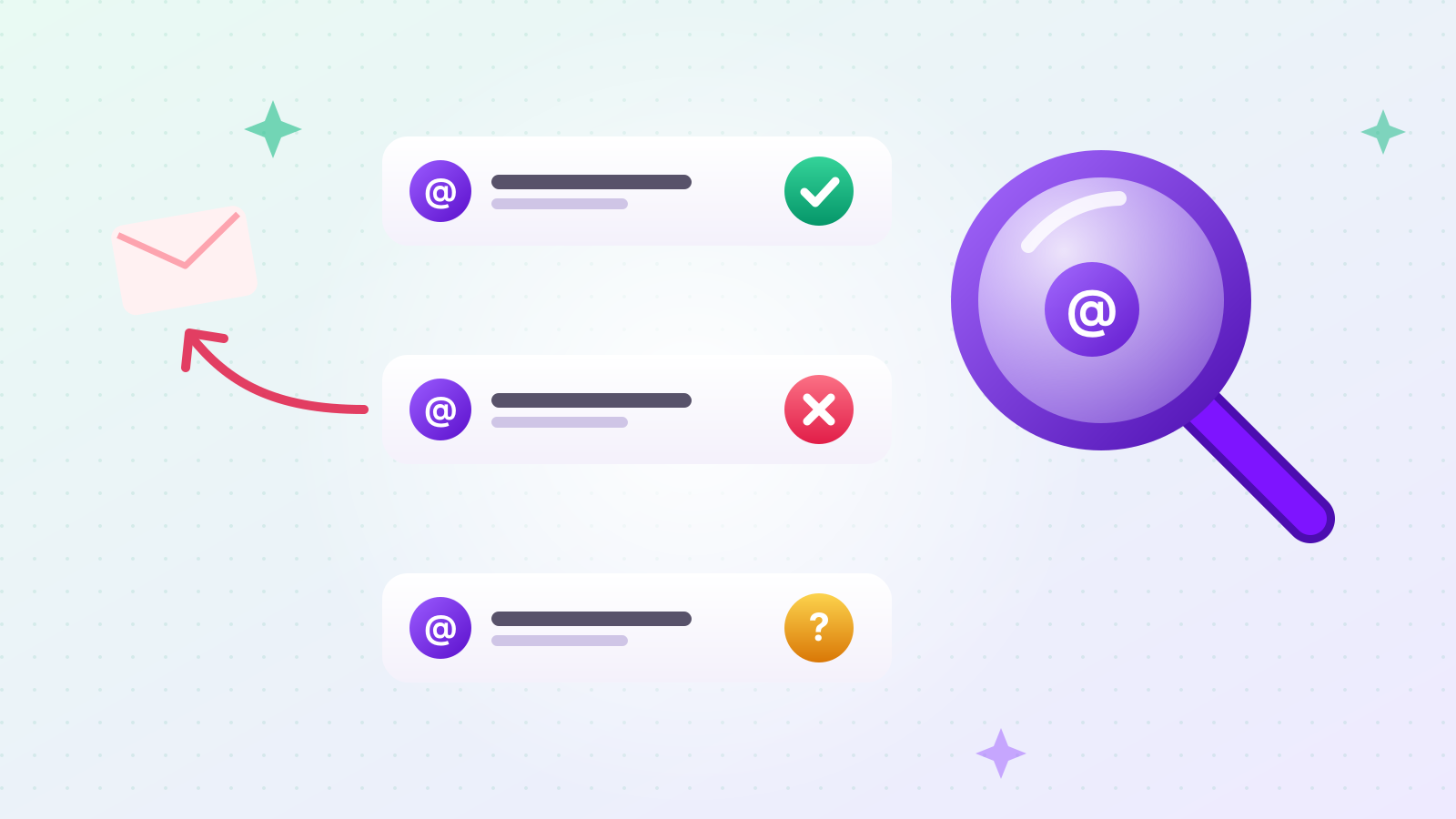
- Look up the DNS records. Our free checker looks up the SPF, DKIM and DMARC records for the domain of the address you enter — no sign-up needed. It checks Google's default DKIM selector (
google._domainkey); if your sending service uses a different selector, the checker will report DKIM as not confirmed even when it's set up. The tool's interface is currently in Korean, but you only need to paste an email address. - Check a real message. Send an email to a Gmail account you control, open it, choose "Show original," and look for
SPF: PASS,DKIM: PASSandDMARC: PASS.
Then give DMARC reports a week or two. When every legitimate source you use shows as passing, move from p=none to p=quarantine, and later to p=reject if you want the strongest protection against spoofing.
What mistakes break authentication most often?
Two SPF records, too many SPF lookups, DKIM generated but never started, and DMARC published before SPF and DKIM have had time to work. A checklist:
- One SPF record, with every sender as an
include:inside it, and no more than 10 lookup terms. - Click "Start authentication" after publishing the DKIM key — the DNS record alone isn't enough.
- Wait about 48 hours after SPF and DKIM before adding DMARC, and publish it at
_dmarc, not at the root. - Send from a domain you control. You can't publish DMARC for an
@gmail.comaddress.
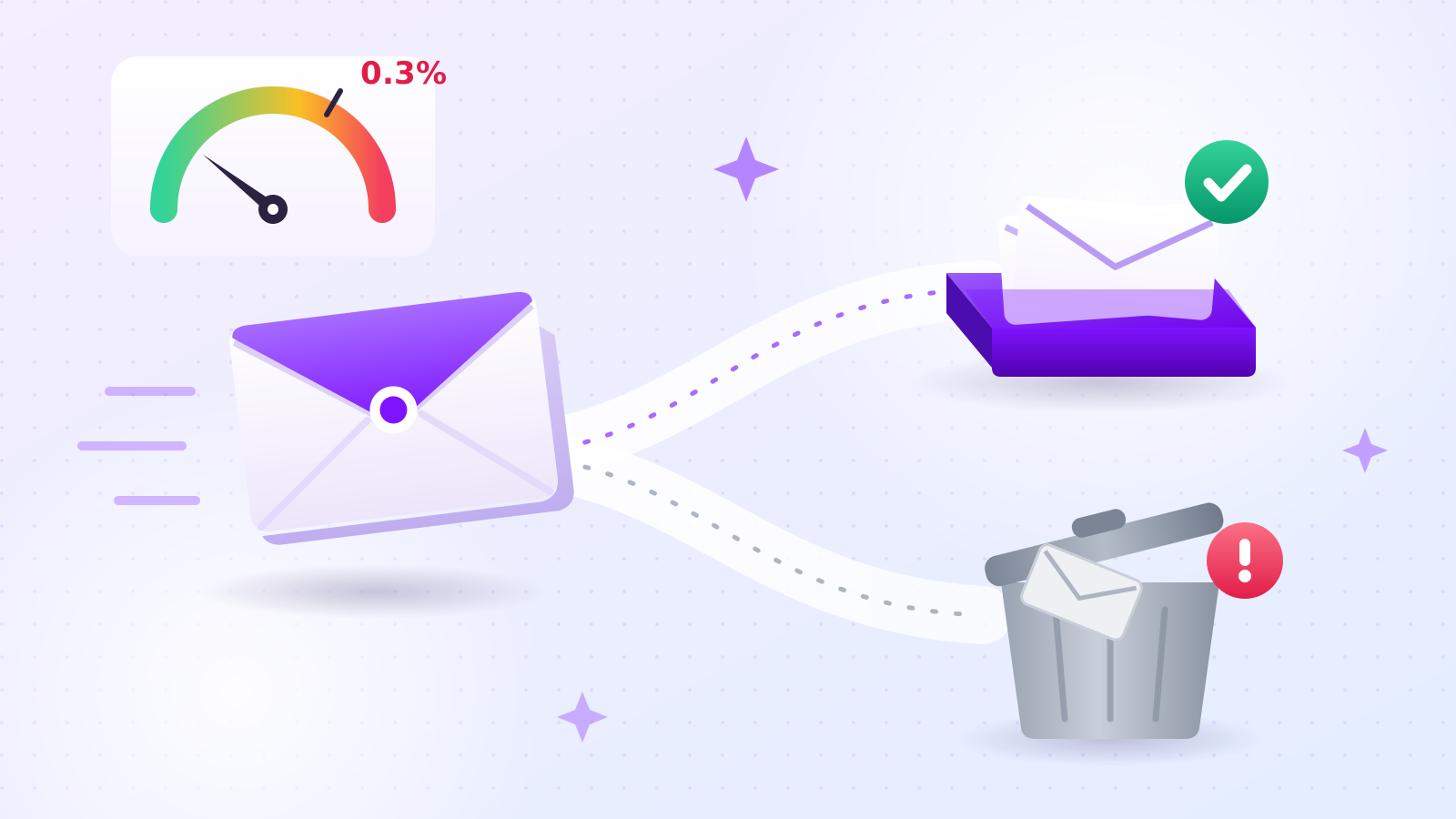
Authentication gets your mail considered; it doesn't make recipients want it. Spam complaints still count — Google and Yahoo both say to keep your spam rate below 0.3%, as we cover in why cold emails land in spam. And sending to addresses that don't exist creates bounces, which is why we recommend you verify addresses before you send.
The short version
- Google and Yahoo require SPF or DKIM from every sender, and all three plus alignment from bulk senders (5,000+ messages a day to Gmail).
- SPF: one TXT record at
@, e.g.v=spf1 include:_spf.google.com ~all; stay within 10 DNS-lookup terms. - DKIM: 2048-bit key, selector
google, TXT atgoogle._domainkey, then Start authentication. - DMARC: one TXT record at
_dmarc, start atp=nonewith a report address, tighten later. RFC 9989 (May 2026) replacedpctwitht=y. - Check your records with our free mail authentication checker, then confirm on a real message.