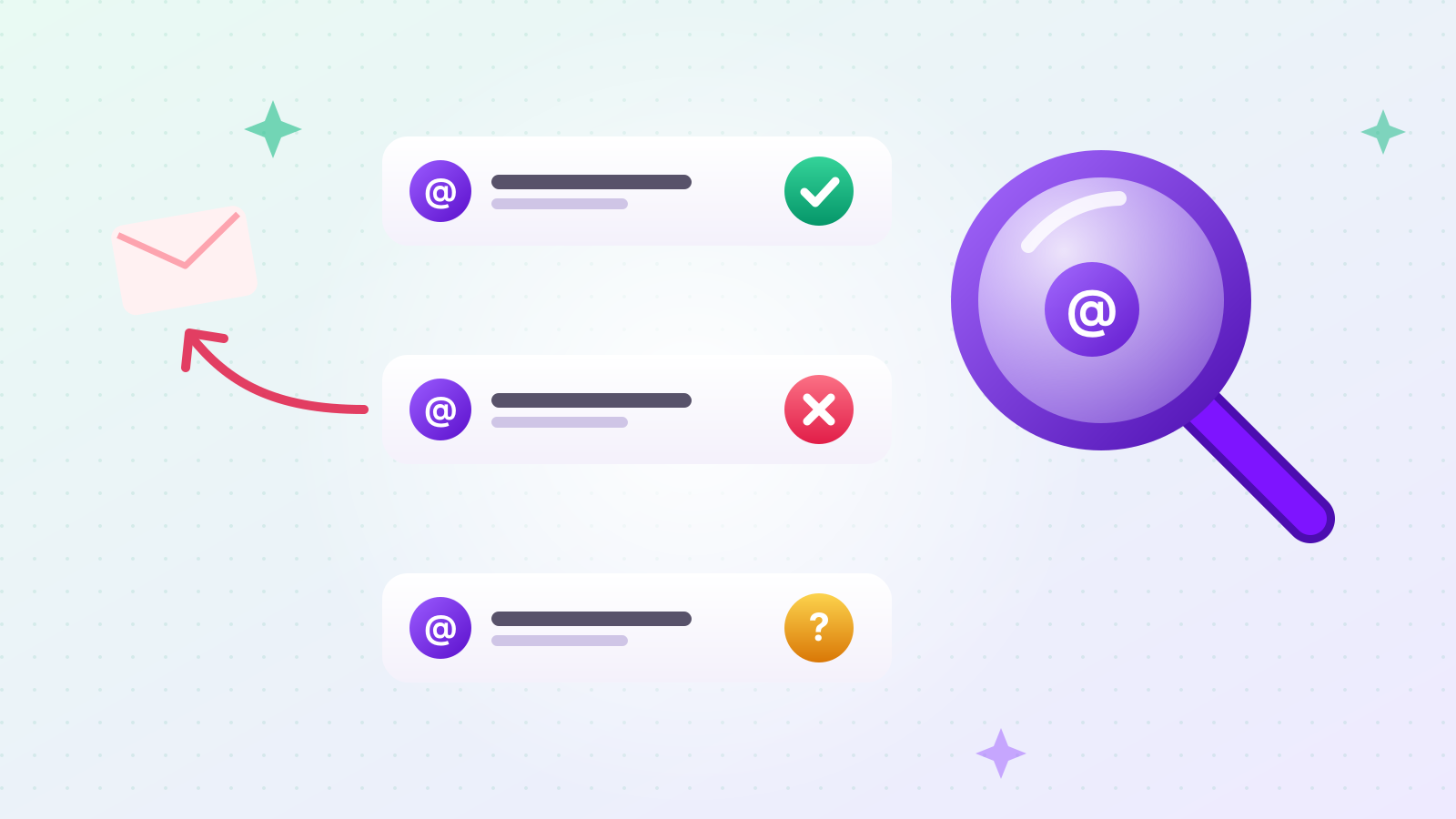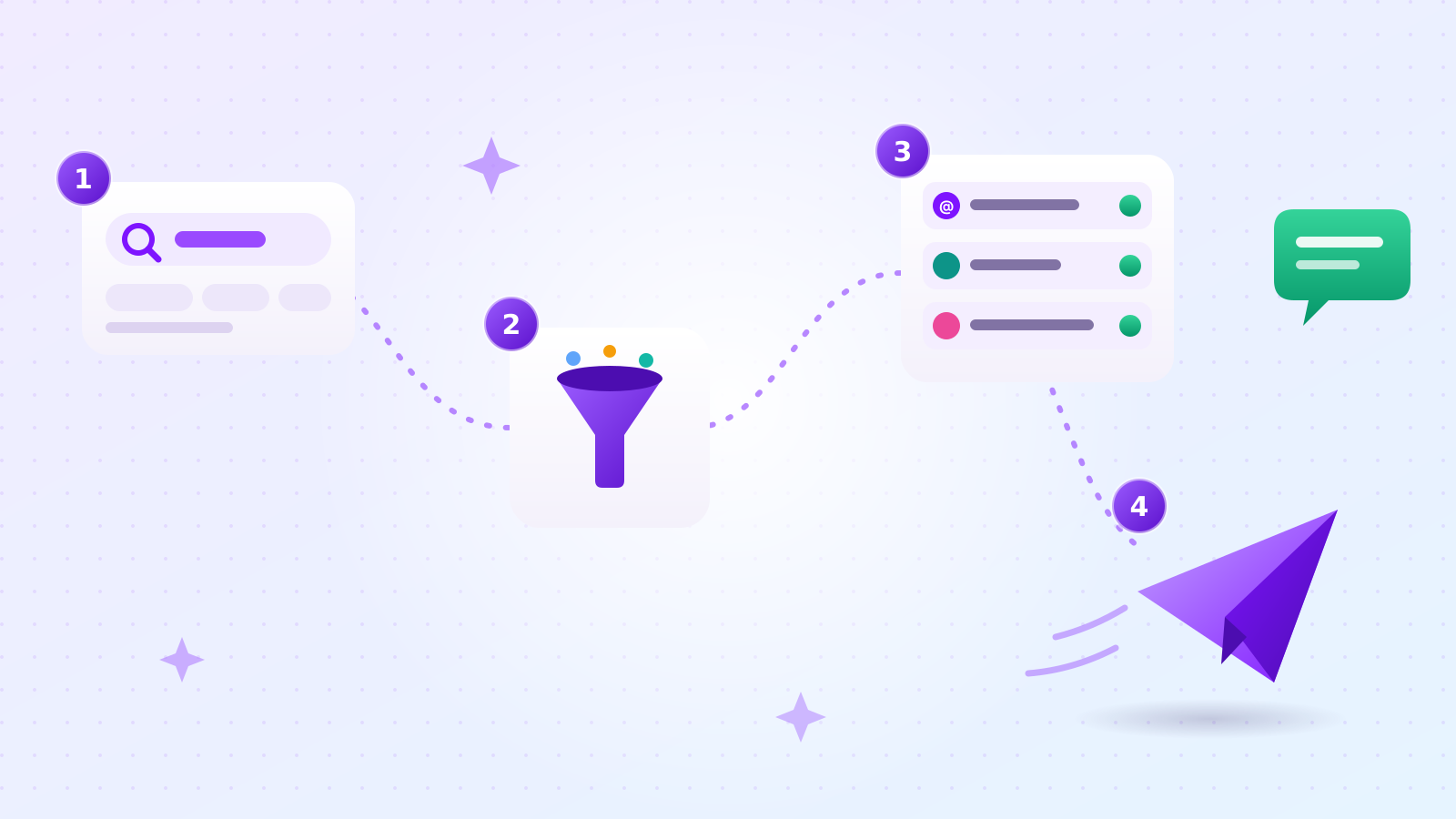
Building a B2B lead list usually means several tools: one to find business emails by keyword, another to check them, a third to send the cold emails — and an afternoon moving spreadsheets between them.
We (Outreach) built one screen that does all of it. You type an industry keyword, choose where to look, and Outreach collects matching businesses with their email addresses, phone numbers and Instagram handles. From the same list, you send emails from your own Gmail and Instagram DMs through our Chrome extension.
This post walks through the whole thing, step by step, with screenshots. One honest note up front: the interface is currently in Korean, so the screenshots below are in Korean and we translate each one in the caption.
What does Outreach do, in one sentence?
Outreach turns an industry keyword into a list of businesses with contact details, and then lets you email or DM that list without leaving the page. It's a B2B lead generation tool and a cold email automation tool in one.
Every project follows the same 4 steps, shown as tabs across the top of the project screen:
- Keyword — where to look and what kind of business to find
- Collect — which contact details you want, and how many businesses
- Results — the table of businesses Outreach found
- Send — emails and Instagram DMs to the businesses you choose
What do you need before you start?
A keyword, a Gmail account for sending, and credits — and new accounts get 100 free credits. That's enough to run a small first project and see real results before paying anything.
- A keyword. The kind of business you want to reach: "craft brewery", "dental clinic", "interior design studio".
- A Gmail account. Emails go out from your own Gmail address, so replies come straight to your inbox. You connect it in Settings.
- Chrome, if you want to send Instagram DMs. DMs are sent by a Chrome extension you install yourself (more on that below). If you only send email, you can skip it.
How do you tell Outreach where to look and what to find?
On the Keyword step, you choose Domestic or Overseas, type one or more industry keywords, and set how many businesses you want. Outreach then shows you the exact search phrases it will use before anything runs.
Choose Overseas and you pick a country and, if you want, a state or region. Outreach can collect from 193 countries, and when you pick a region it keeps only businesses whose location in that region is confirmed. Under Overseas there's also a "Korean-owned businesses only" option for anyone selling to Korean businesses abroad. We cover the overseas side in detail in how to find overseas buyers by country and region.
Next, add your keywords. You can add several words for the same industry, because businesses describe themselves differently, and each name finds different businesses. The target count sits to the right of the keyword row.

That preview box is there so there are no surprises. The example above is a project looking for Korean-owned businesses in Georgia, USA, so the box lists 12 phrases in English and Korean, such as "Korean restaurant Atlanta" and "Korean realtor Georgia". If those 12 phrases don't produce 300 businesses, Outreach rephrases them — another name for the industry ("Korean restaurant" becomes "Korean eatery") or another place in the region ("Atlanta" becomes "Columbus GA") — to fill the count.
How do you choose which contact details to collect?
For each of email, phone number and Instagram handle, you pick one of three settings: Skip, Collect if available, or Required. That choice decides both what ends up in your list and what you pay.

- Skip — don't collect it at all.
- Collect if available — save it when the business publishes it.
- Required — only save businesses that have it. If you plan to send email only, set Email to Required and every business on your list will have an address.
With everything on "Collect if available", Outreach saves any business that has at least one of the three. You also set how many businesses to collect per keyword on this step.
How do you know what a collection will cost before it starts?
A cost line appears above the Start button, showing the maximum number of credits the run could use and your current balance. You see the worst case before you commit.

The math is simple. In this example, the run asks for up to 300 businesses, and 3 contact details are selected, so the maximum is 300 × 3 = 900 credits. You're charged 1 credit per contact detail actually found. If a business has an email but no phone number and no Instagram, you pay 1 credit for it, not 3. That's why the real cost usually lands below the maximum.
When the numbers look right, click Start collecting. You can leave the page; collection keeps running.
What does the results table show?
One row per business: the business name, email, phone number, Instagram handle, and where it was found. A summary card at the top counts how many businesses have each kind of contact detail.

In the demo project above, Outreach found 34 businesses: 24 with an email, 7 with an Instagram handle and 15 with a phone number. 26 of them could be contacted by email or DM.
Two things happen before a business ever reaches this table:
- Things that aren't businesses are filtered out. News articles, sites that list many businesses, government offices and associations don't belong on a B2B lead list, so Outreach removes them.
- Email addresses are checked before they're saved. Outreach asks the recipient's mail server whether the address exists, without sending anything. Addresses that don't exist aren't saved. (You can try the same kind of check on a single address with our free checker; its interface is currently in Korean.)
Every business you collect is on the send list by default; you only remove the ones you don't want. Tick the businesses in the table, then use the Change send list menu to add them to, or remove them from, the email list or the DM list. The business stays in your table either way. Download to Excel at the right end of the table gives you the list as a spreadsheet, with whatever filters you've applied.
How do you send cold emails from Gmail?
On the Send step, write your subject and message, then click Send now or choose a time under Send later. Emails go out from your connected Gmail, one at a time, with about 10 minutes between each by default.
Write the message once. Fields like {company_name} are filled in for each business automatically, so every email is addressed to the business by name. If you need ideas, see 5 B2B cold email templates.
Then choose when to send:
- Send now starts right away.
- Send later lets you schedule a specific time, or have Outreach pick a send time that avoids weekends and late nights.
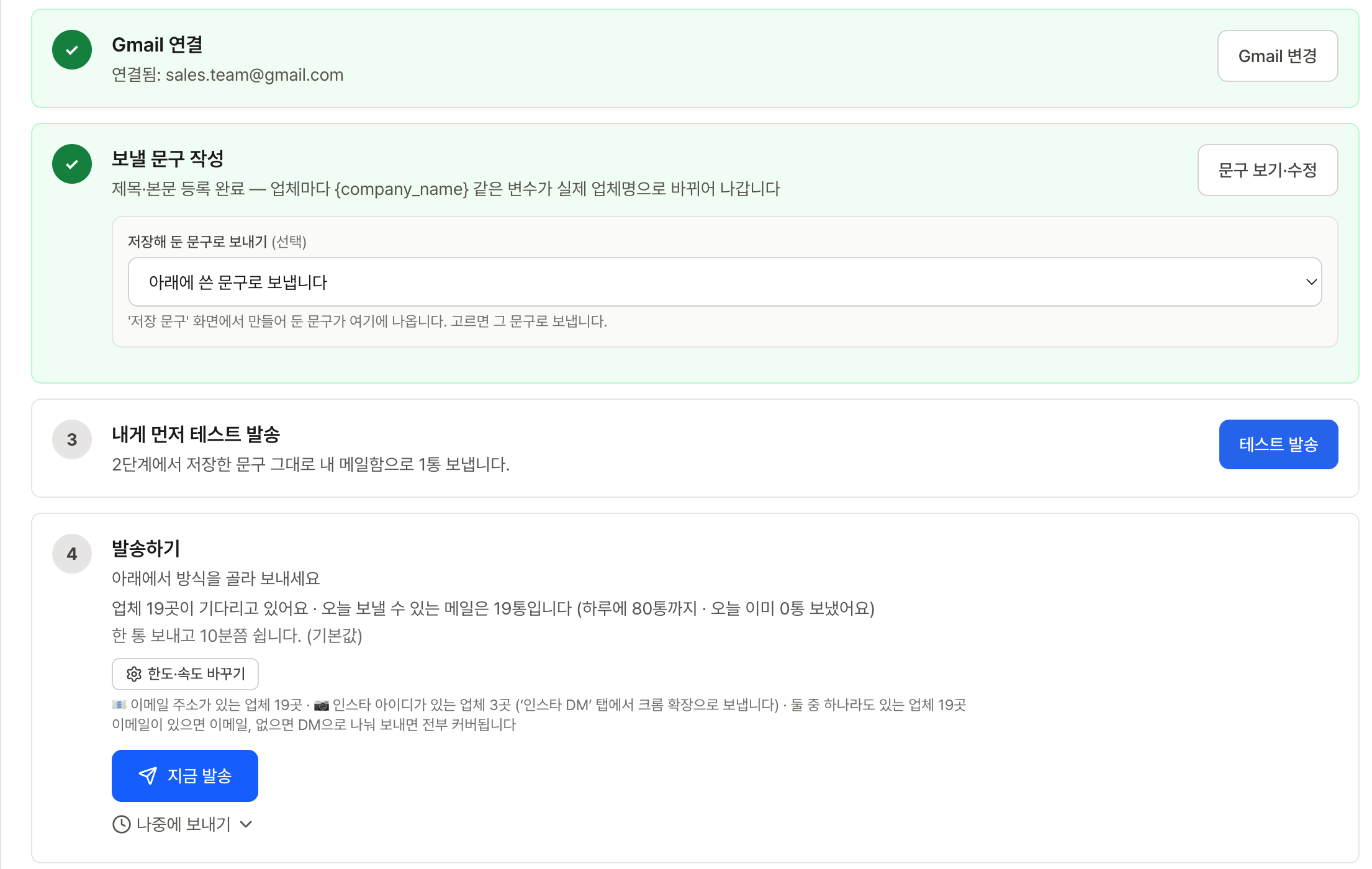
Outreach doesn't blast the whole list at once. It sends one email, waits about 10 minutes, and sends the next. Sending slowly looks like a person writing emails rather than a blast. It also means a list of 50 takes most of a working day, so start in the morning.
Before anything goes out, the send queue shows the status of each address:
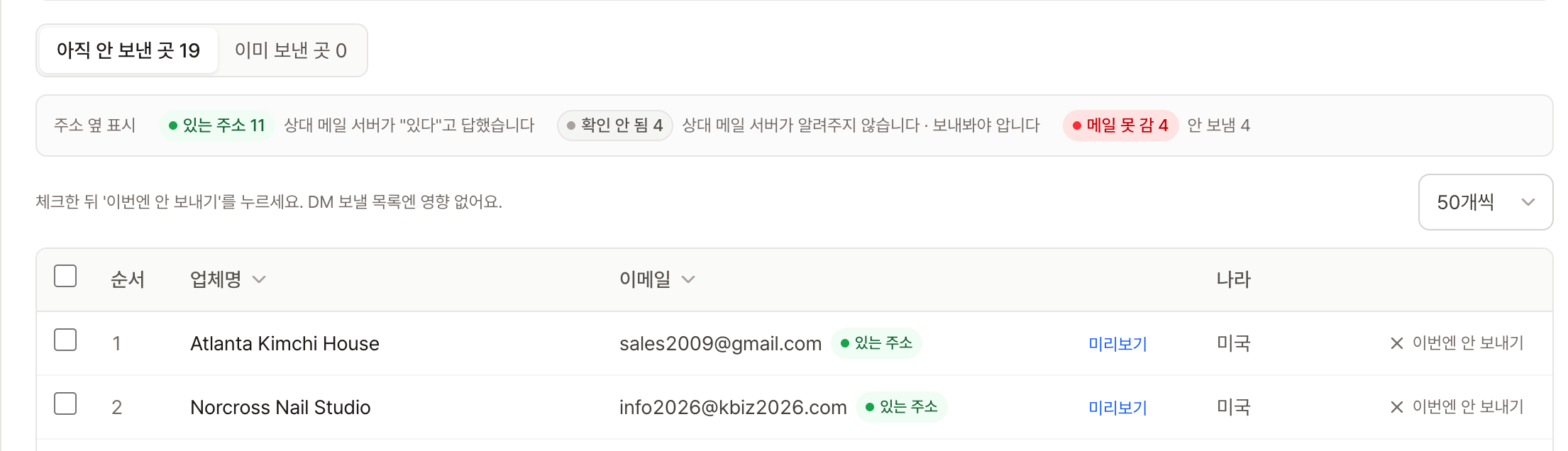
If an email you send doesn't get delivered, the credits for that email are refunded. Before your first big send, it's also worth running your domain through our free checker for sender settings (interface in Korean); setting up SPF, DKIM and DMARC explains what it checks.
How do you send Instagram DMs?
Instagram DMs are sent by the Outreach Chrome extension, which you download from our website and install yourself. It isn't listed in the Chrome Web Store, so installation takes a couple of extra clicks.
The setup, once:
- Download the extension as a .zip file from the extension guide page on outreach.kr and unzip it.
- In Chrome, go to
chrome://extensionsand turn on Developer mode (top right). - Click Load unpacked and choose the unzipped folder.
- Log in to the extension with your Outreach account, and be logged in to Instagram in the same browser.
After that, DMs go out from the Send step the same way emails do: write the message once, and the business name is filled in for each one. Each DM is 3 credits, and a DM that fails to send is refunded.
How do you follow up with businesses that didn't reply?
You can send a follow-up by hand from the "Already sent" list, or set up automatic follow-up emails that go out only to businesses that haven't replied. A busy owner who missed your first email may answer a short second one, so it's worth setting up once.
- Follow-up by hand. In the project, businesses you've already emailed move to "Already sent". Pick them and send a follow-up message.
- Automatic follow-up emails. A menu item of the same name lets you set a follow-up that's sent automatically after a set number of days — and only to businesses that haven't replied. Anyone who replies is taken off the sequence.
- Saved text. Keep the messages you use often in the Saved text menu so you don't rewrite them for every project.
Where do you see what's working?
Each project has a results view that shows how many businesses you collected, how many you emailed, and how many replied. The biggest drop between two stages is the thing to fix first.
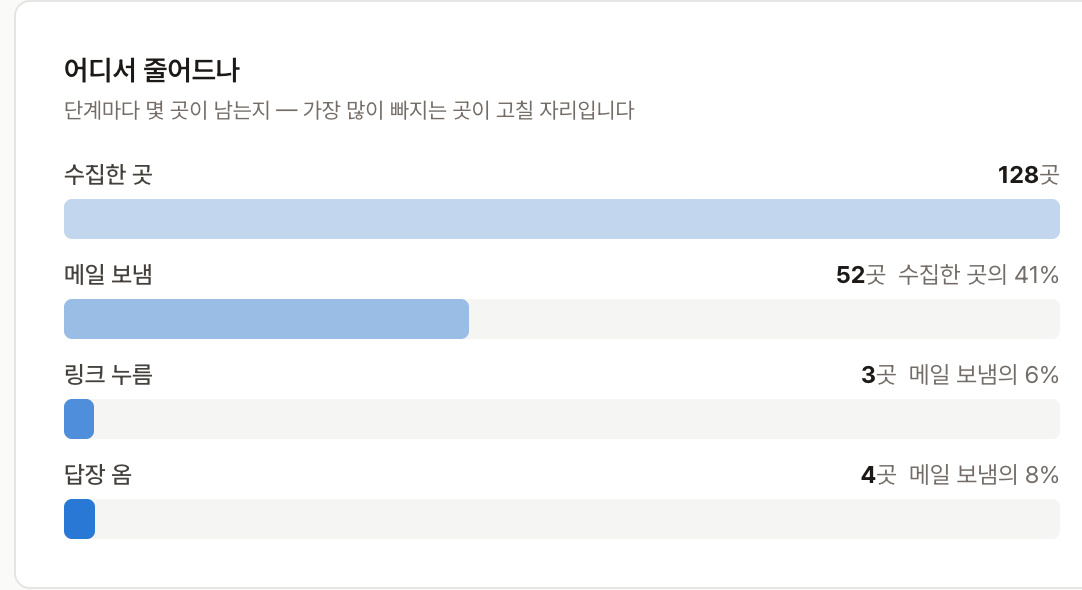
In this demo project, 52 of 128 collected businesses were emailed and 4 replied. If most businesses were collected but few were emailed, the list needs more emails (set Email to Required next time). If many were emailed but few replied, the message is the thing to change.
How long does this take compared with doing it by hand?
By hand, finding one business's contact details takes about 1–2 minutes, so 300 businesses take 5 to 10 hours. That's the realistic time to search, load each website, find the contact page and copy the details into a spreadsheet.
In our own runs, Outreach collected 30 businesses in one US region in between 13 minutes 27 seconds and 30 minutes 24 seconds — and you don't have to watch it happen. We compare the manual options in more detail in 4 ways to find B2B contacts as a solo founder.
Where should you start?
Start with one keyword, one region and a small target, like 30 businesses. Your 100 free credits cover a first run like that, and you'll see exactly what the list looks like for your industry before spending anything.
- Create a free account.
- Create a project and type one keyword.
- Set Email to Required if email is your main channel.
- Check the cost line, then start collecting.
- Connect Gmail, write one short message, and send.
There's no monthly subscription. You pay per contact detail found and per message sent, and a question-mark button in the bottom-right corner of every screen gives you search, FAQs and a way to message us if you get stuck.